Detection
What detection actually does
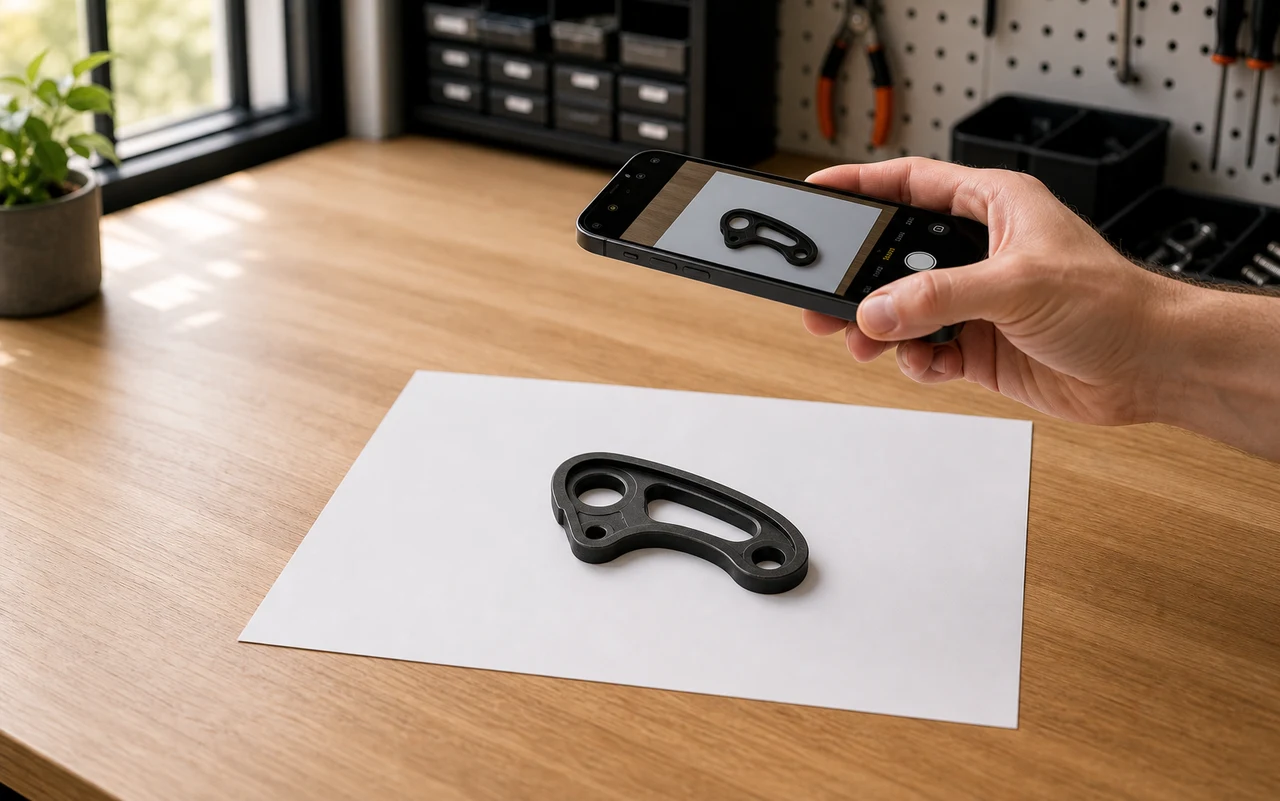
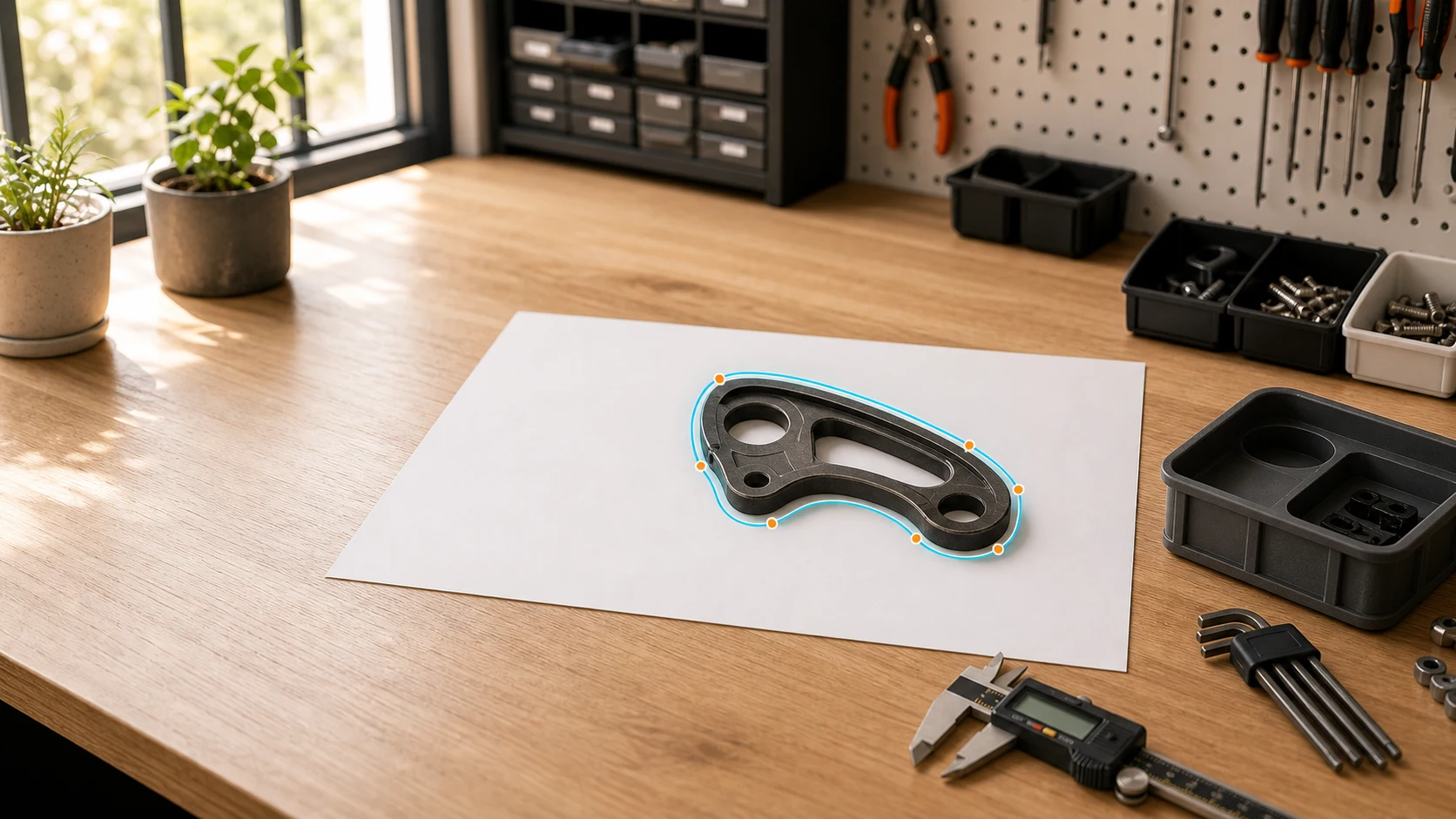
After the paper is located, Tracemate scans the area inside it for sharp brightness transitions. Connected edges are chained into closed contours, the largest contour around your object becomes the outline, and any closed contours inside it are kept as holes.
That last part matters for real tools: the hex opening of a wrench or the hanging hole of a screwdriver survives into the cutout, so the printed pocket matches the part instead of just its silhouette.
edges → contours → outline + holes
Editing
Fixing a trace by hand
No detection is perfect, and it doesn't need to be. Every outline is a set of draggable points: pull a stray point back onto the edge, delete noise, or add points where a curve needs more resolution.
If a region like black foam or a soft shadow barely registered, drop in a basic shape and merge it, or hand the photo to the AI Zauberstab and let it resolve the edges the classic detector couldn't.
drag · add · delete · merge shapes
Fit
Choosing the right clearance
Clearance is the gap between your object and the cutout wall, adjusted in 0.1 mm steps. There is no single correct value. It depends on how much grip you want. Around 0.1–0.2 mm the part presses in and stays put even when the bin is tipped; 0.3–0.4 mm gives an easy one-handed grab; 0.5 mm and up suits gloves or frequently swapped parts.
Printers vary, so treat your first export as a calibration piece: print one bin, feel the fit, and nudge the value once. After that, your number carries across projects.
snug 0.1–0.2 · grab 0.3–0.4 · loose 0.5+
Export
From outline to printable bin
The confirmed outline is extruded down into a Gridfinity body: you set how deep the pocket sinks, and the footprint snaps to whole 42 mm grid cells so it locks into any standard baseplate.
Add a finger scoop where you want to lift the part out, then export. The STL is plain geometry. Open it in PrusaSlicer, Cura, Bambu Studio, or whatever your printer speaks. No special profile required.
depth · scoop · 42 mm cells · STL